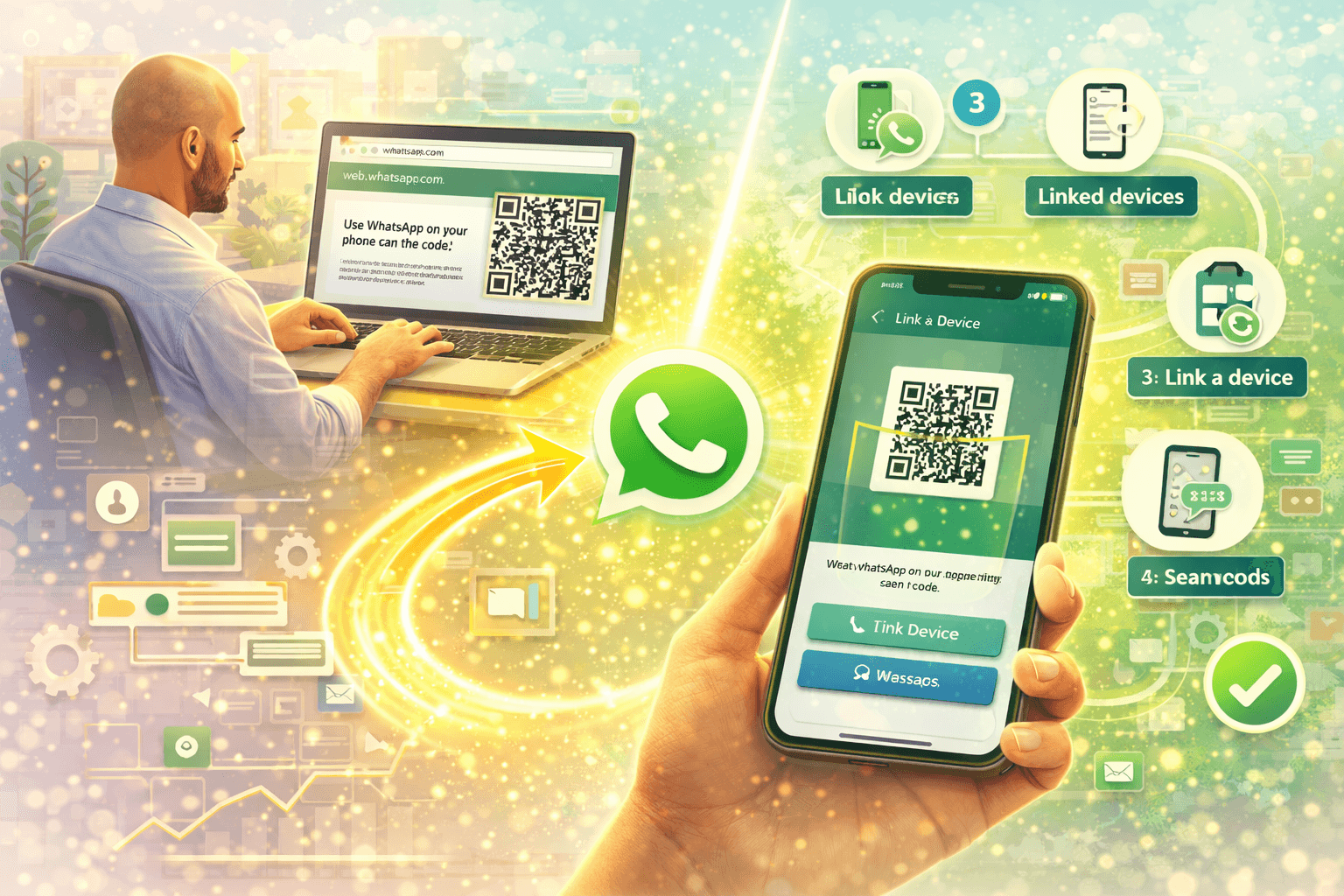
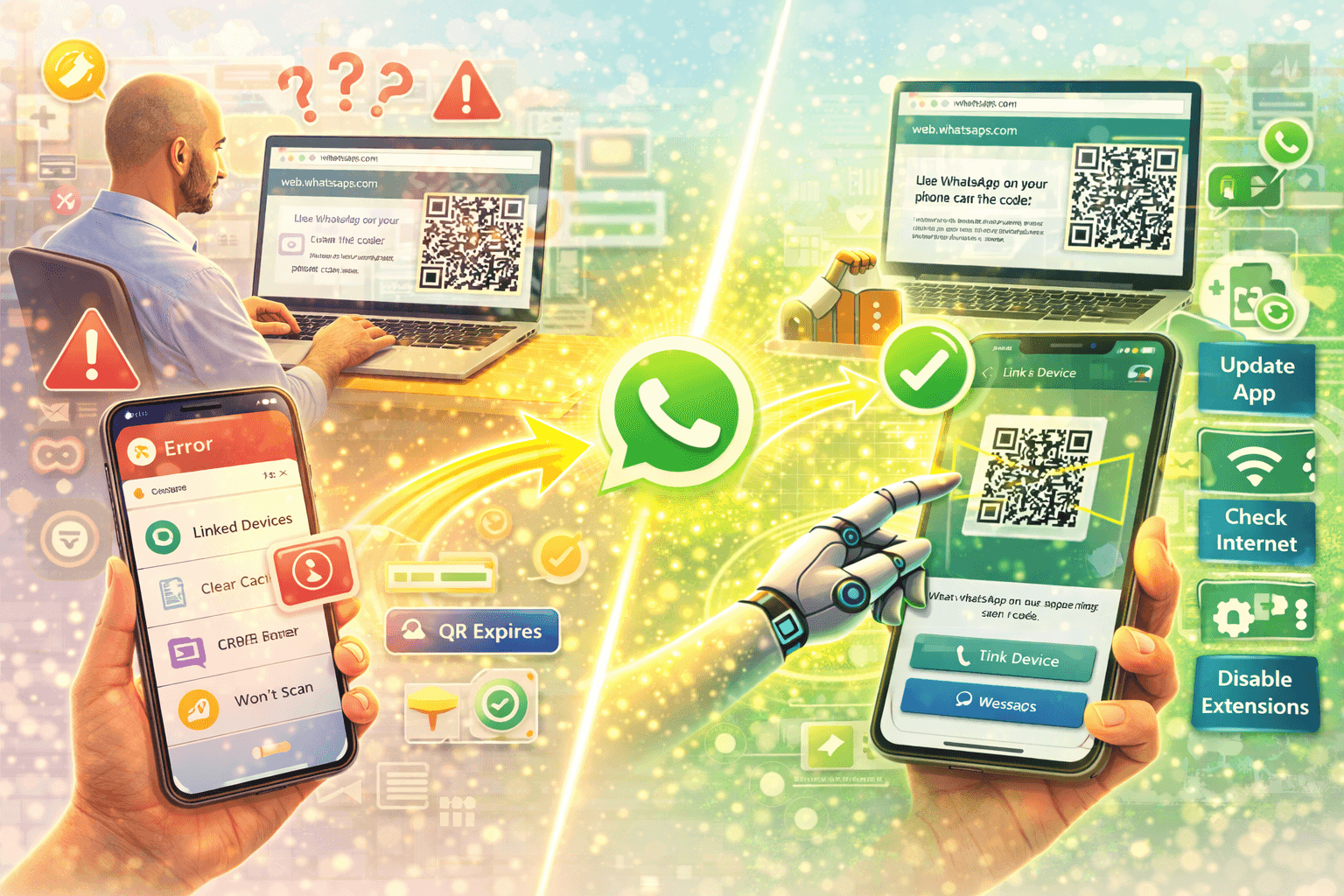
You open web.whatsapp.com, the QR code appears, you grab your phone, open WhatsApp, go to Linked Devices, point your camera at the screen and... nothing. The code just sits there. Or it refreshes before you can scan it. Or you scan it and get an error message.
Few things are more quietly infuriating than a WhatsApp Web QR code that refuses to work when you are in the middle of something. You are not doing anything wrong. You just need to know which fix applies to your specific situation.
This guide covers every reason the WhatsApp Web QR code stops working and gives you a clear fix for each one. Work through the list and you will be back in within minutes.
Why the WhatsApp Web QR Code Stops Working
Before jumping into fixes, it helps to quickly understand what can go wrong. The WhatsApp Web login QR code fails for a handful of reasons:
- The QR code expired before you scanned it
- Your phone camera is not detecting the code properly
- Your browser has cached data causing a conflict
- Your internet connection is unstable on your phone or computer
- Your WhatsApp app is outdated
- A browser extension is blocking the page
- You have reached the maximum number of linked devices
- WhatsApp's servers are temporarily down
Each of these has a specific fix. Let us go through them one by one.
Fix 1: The QR Code Expired Before You Could Scan It
This is the most common reason the WhatsApp Web QR code appears to "not work." The code refreshes every 20 to 30 seconds. If you are slow getting your phone ready, the code expires mid-scan and the camera does not register it.
How to fix it:
Get your phone ready before you open web.whatsapp.com. Here is the right sequence:
- Open WhatsApp on your phone first
- Go to the three-dot menu (Android) or Settings (iPhone)
- Tap Linked Devices
- Tap Link a Device
- Now your phone camera is open and ready
- Only then open web.whatsapp.com on your computer
- Scan immediately the moment the QR code appears
This way, you are scanning within two or three seconds of the code appearing. No time to expire.
Fix 2: WhatsApp Web QR Code Not Loading at All
You go to web.whatsapp.com and instead of a QR code, you see a loading spinner that never resolves, a blank page, or an error message.
How to fix it:
Clear your browser cache. Old cached data is one of the most common culprits for WhatsApp Web not loading. Here is how to clear it in the most common browsers:
- Chrome: Press Ctrl + Shift + Delete (Windows) or Cmd + Shift + Delete (Mac), select All Time as the time range, check Cached images and files and Cookies, then click Clear data
- Firefox: Same keyboard shortcut, similar process
- Safari: Go to Safari menu, Preferences, Privacy, then Manage Website Data and remove WhatsApp data
After clearing cache, refresh web.whatsapp.com and the QR code should load.
Try a different browser. If clearing cache does not help, open a different browser entirely. If you were on Chrome, try Firefox or Edge. If the QR code loads fine in the other browser, the issue is specific to your original browser's settings.
Disable extensions. Browser extensions, especially ad blockers, privacy tools, and VPNs, can interfere with WhatsApp Web. Try opening web.whatsapp.com in an incognito or private browsing window, which disables extensions by default. If the QR code loads in incognito, an extension is the problem. Disable them one by one to find the culprit.
Fix 3: Camera Not Scanning the WhatsApp QR Code
The QR code is on screen, your phone camera is open, but nothing is happening. The camera just sits there staring at the code without recognizing it.
How to fix it:
Adjust your distance. Hold your phone about 15 to 20 centimeters from the screen. Too close and the camera cannot focus. Too far and the code is too small to read.
Increase screen brightness. A dim screen makes it harder for the camera to pick up the QR code pattern. Turn your monitor brightness up to maximum before scanning.
Reduce glare. If there is a reflection or glare on your screen, tilt the monitor slightly or move to a position where the screen is clearly visible without reflections.
Make sure the full QR code is in frame. The entire QR code, including its edges, needs to be visible in your camera's viewfinder. If you are cropping any part of it, the scan will not work.
Clean your camera lens. A smudged lens is a surprisingly common reason camera-based scanning fails. Wipe it with a soft cloth and try again.
Check WhatsApp camera permissions. On some phones, WhatsApp does not have permission to use the camera. Go to your phone Settings, find WhatsApp in the app list, and check that camera permission is enabled.
Fix 4: WhatsApp Web QR Error After Scanning
You scan the code successfully, WhatsApp seems to recognize it, but then you get an error message. Common error messages include "Could not link device," "Something went wrong," or the page just resets and shows a new QR code.
How to fix it:
Update WhatsApp on your phone. An outdated version of WhatsApp is a common cause of linking errors. Go to the Google Play Store or Apple App Store, search for WhatsApp, and update to the latest version. Then try scanning again.
Restart WhatsApp on your phone. Close WhatsApp completely (swipe it away from recent apps), wait 10 seconds, reopen it, and try the scan again.
Check your phone's internet connection. The linking process requires your phone to be online. Switch between mobile data and Wi-Fi to see if one connection works better than the other.
Restart your router or switch networks. Sometimes the issue is network-side. If you are on Wi-Fi, try switching your phone to mobile data. Or switch to a different Wi-Fi network if one is available.
Fix 5: WhatsApp Web Keeps Logging You Out
You successfully log in but WhatsApp Web keeps disconnecting or logging you out frequently.
How to fix it:
Check your phone's battery optimization settings. Many Android phones aggressively kill background apps to save battery. If WhatsApp is in the battery optimization list, it gets restricted or closed in the background, which breaks the WhatsApp Web connection. Go to your phone Settings, Battery, Battery Optimization, find WhatsApp, and set it to Not Optimized or Unrestricted.
Keep your phone connected to internet. If your phone's Wi-Fi drops or mobile data is unstable, WhatsApp Web will lose its sync. Keep your phone on a stable connection.
Do not force-close WhatsApp on your phone. If you manually close the WhatsApp app on your phone, your WhatsApp Web session will end. Leave it running in the background.
Disable sleep mode for WhatsApp. Some phones have a feature that puts specific apps to sleep after a period of inactivity. Check your phone's app management settings and make sure WhatsApp is excluded from any sleep or hibernation features.
Fix 6: "This Phone Cannot Be Linked" Error
This specific error appears when WhatsApp cannot establish a link between your phone and the browser or desktop app.
How to fix it:
Update WhatsApp immediately. This error almost always means your WhatsApp version is too old to support the current linking protocol. Update the app and try again.
Check if you are using a modified WhatsApp version. Apps like WhatsApp GB, WhatsApp Plus, or any third-party WhatsApp modifications cannot be linked to WhatsApp Web through the official process. If you are on a modified version, you need to switch to the official WhatsApp app.
Make sure you are scanning the correct QR code. If you accidentally scanned a QR code from a source other than the official web.whatsapp.com, you might see this error. Always verify the URL in your browser before scanning.
Fix 7: Maximum Linked Devices Reached
WhatsApp allows a maximum of four linked devices per account. If you already have four devices linked, trying to add a fifth will fail.
How to fix it:
Go to WhatsApp on your phone, tap Linked Devices, and review the list. You will see all currently linked devices with their last active time. Tap on any device you no longer use and select Log Out. This frees up a slot for your new device.
It is good practice to review your linked devices regularly anyway, both for security and to make sure old sessions from computers you no longer use are removed.
Fix 8: WhatsApp Web Not Working Due to Server Issues
Occasionally, the problem is not on your end at all. WhatsApp has service disruptions that affect WhatsApp Web specifically.
How to check:
Search "WhatsApp down" on Twitter or check a service status site like Downdetector.com. If many other users are reporting the same issue at the same time, it is a server-side problem. The only fix here is to wait it out. WhatsApp usually resolves these within an hour or two.
Quick Troubleshooting Checklist
If you want to run through everything fast, here is a checklist to follow:
Phone side:
- WhatsApp is updated to the latest version
- Camera permission is enabled for WhatsApp
- Phone is connected to stable internet
- Battery optimization is turned off for WhatsApp
- You have not reached the 4-device linked limit
Computer side:
- Using official web.whatsapp.com URL
- Browser cache and cookies are cleared
- Extensions are disabled or tested in incognito
- Screen brightness is turned up
- No VPN running that might interfere
Scanning:
- Phone camera is open and ready before loading the QR code page
- Scanning immediately after QR code appears
- Full QR code is visible in camera frame
- Phone is 15 to 20 cm from the screen
- Camera lens is clean
If you work through this entire list and still have issues, the problem is almost certainly a WhatsApp server issue or a device-specific software conflict. Try restarting both your phone and computer as a final step.
Using WhatsApp Web More Effectively for Business
Once you have WhatsApp Web working, the experience of managing business conversations changes significantly. Typing on a full keyboard, having multiple chats open at once, easily sharing files from your computer, it all makes WhatsApp management much faster.
But if you are using WhatsApp for business at any real volume, the WhatsApp Business app and WhatsApp Web are just the starting point. The real efficiency gains come from automation.
WhatsApp automation for small businesses handles the part that WhatsApp Web cannot. Automated first responses. Lead qualification flows. Scheduled follow-ups. Broadcast campaigns to segmented contact lists. These are the tools that turn WhatsApp from a messaging app into a proper business growth channel.
Conversation automation means your WhatsApp responds intelligently even when you are not at your desk. For freelancers especially, automating client communication on WhatsApp means inquiries are handled, follow-ups are sent, and clients feel taken care of even when you are heads-down on a project.
And if you want to go a step further and build a proper customer communication system around WhatsApp, messaging-first CRM for Indian businesses is where that journey leads.
FAQs: WhatsApp Web QR Code Troubleshooting
Why does my WhatsApp Web QR code keep refreshing and not scanning?
The QR code refreshes every 20 to 30 seconds as a security measure. Prepare your phone camera first, then open web.whatsapp.com and scan within seconds of the code appearing. Do not wait or navigate away.
Why is my WhatsApp Web QR code blurry or not showing?
This is usually a browser rendering issue. Clear your browser cache, try a different browser, or disable extensions. If the code still looks corrupted or blurry, try zooming in on the page slightly using Ctrl + Plus on your keyboard.
Can I use WhatsApp Web without scanning the QR code every time?
Once linked, WhatsApp Web stays logged in as long as you do not log out manually, do not clear browser data, and keep the browser tab open or return to it within a reasonable time. If you close the browser or clear cookies, you will need to scan again.
My phone is not connecting to WhatsApp Web after scanning. What do I do?
Check your phone's internet connection. Restart WhatsApp on your phone. Update to the latest version. Try switching between Wi-Fi and mobile data. If none of these work, remove all linked devices from your account and try linking again fresh.
Is it safe to use WhatsApp Web on my office computer?
It is safe as long as you log out when you are done. Go to the three-dot menu in WhatsApp Web and click Log Out, or remove the device from Linked Devices on your phone. Never leave a WhatsApp Web session open on a shared computer.
Why does WhatsApp Web work on some browsers but not others?
Different browsers handle web resources differently. Extensions, security settings, and cached data vary by browser. If it works on one browser but not another, the issue is browser-specific. Clear cache and disable extensions in the problem browser, or just use the one that works.
Can I fix WhatsApp Web QR code issues on my phone browser?
WhatsApp Web is not designed for mobile browsers. It redirects to the WhatsApp app instead. If you need to manage WhatsApp on a mobile device, use the app directly or use the WhatsApp Desktop app on a laptop or tablet.
How do I know if WhatsApp Web is down?
Check Twitter for "WhatsApp down" reports or visit Downdetector.com and search for WhatsApp. If thousands of users are reporting the same issue at the same time, it is a server problem and you just need to wait.
The Bottom Line
WhatsApp Web QR code not working is almost always fixable in under five minutes. The most common causes are an expired QR code, browser cache issues, an outdated WhatsApp app, or a camera that needs a moment to focus properly.
Work through the fixes in order. Clear your browser cache, update WhatsApp, get your phone ready before loading the page, and scan immediately when the code appears. That combination resolves the issue for most people.
And once you are back in, if you are using WhatsApp for any kind of business communication, it is worth exploring what automation can do for your workflow. Reach out to the Wasupp team and find out how to build a WhatsApp setup that handles your business communication on autopilot