You are sitting at your laptop, trying to open WhatsApp Web, and there is this QR code staring back at you. You know you need to scan it with your phone but somehow the option is buried three taps deep and the QR code expires before you find it.
Sound familiar?
You are not alone. Scanning the WhatsApp Web QR code trips up a lot of people, not because it is technically complicated but because the steps are not obvious the first time. And when the QR code keeps refreshing or you get an error, it is easy to get frustrated.
This guide walks you through exactly how to scan the WhatsApp Web QR code on any device, fixes the most common problems, and then shows you what becomes possible once you are using WhatsApp on your computer properly.
What Is the WhatsApp Web QR Code?
WhatsApp Web lets you use WhatsApp on your computer browser without installing any app. You go to web.whatsapp.com, a QR code appears on the screen, you scan it with your phone, and your WhatsApp syncs to your browser instantly.
The QR code is basically a secure handshake between your phone and your computer. It confirms that the person trying to log in actually has access to the phone number on the account. This is why you always need your phone nearby to use WhatsApp Web, at least for the initial login.
Once logged in, you can read and send messages, share files, and manage conversations directly from your laptop keyboard. For anyone who sends a lot of WhatsApp messages for work, this is a game changer for speed and productivity.
How to Scan WhatsApp Web QR Code: Step by Step
On Android
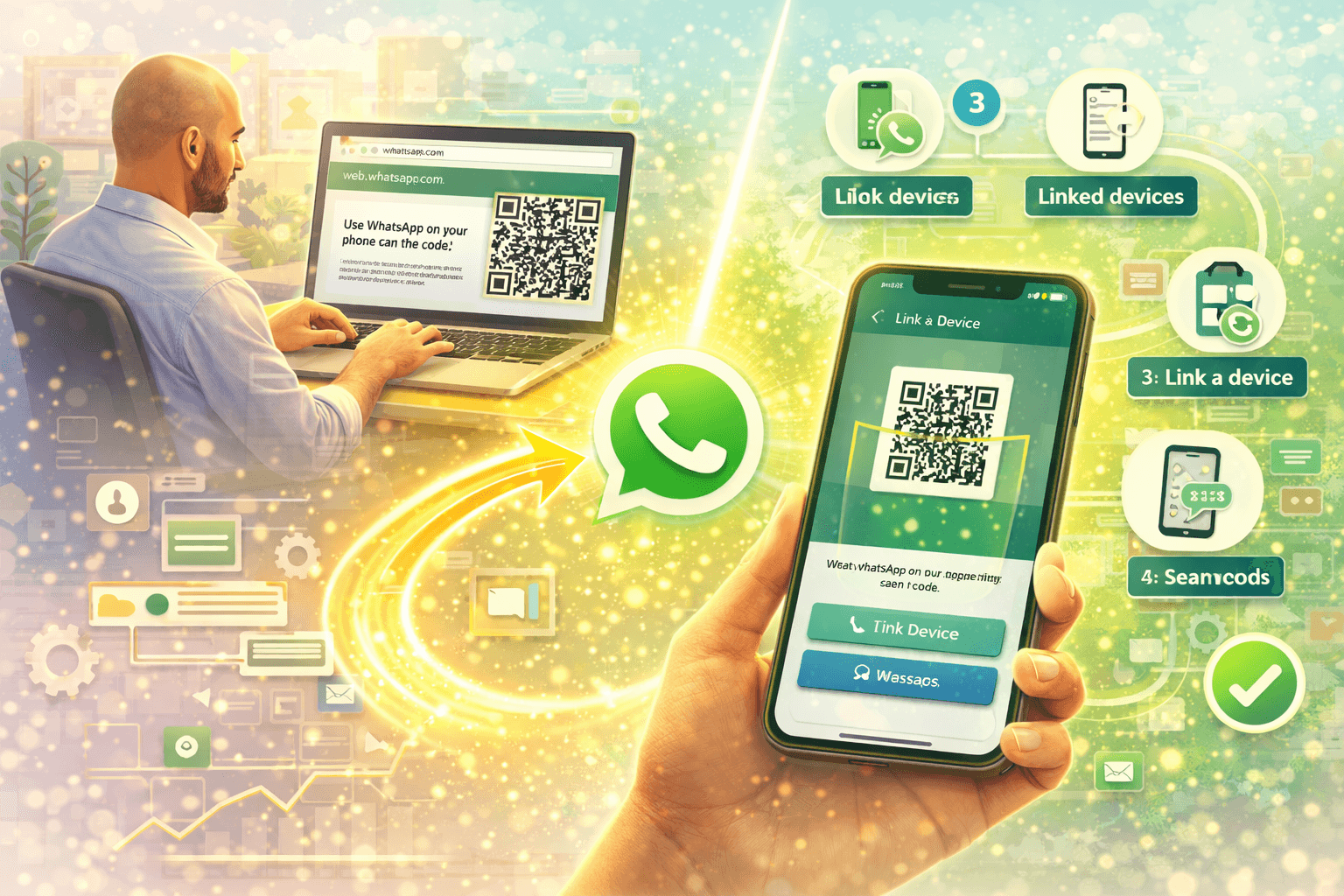
Step 1: Open the Chrome, Firefox, or any browser on your computer and go to web.whatsapp.com. A QR code will appear on the screen.
Step 2: Pick up your Android phone and open WhatsApp.
Step 3: Tap the three dots icon in the top right corner of the screen. This opens the main menu.
Step 4: Tap "Linked Devices" from the menu.
Step 5: Tap "Link a Device." Your phone's camera will open automatically, ready to scan.
Step 6: Point your phone camera at the QR code on your computer screen. Hold it steady for a second.
Step 7: Done. WhatsApp will sync to your browser within a few seconds.
On iPhone (iOS)
Step 1: Go to web.whatsapp.com on your computer browser. Wait for the QR code to appear.
Step 2: Open WhatsApp on your iPhone.
Step 3: Tap "Settings" at the bottom right of the screen.
Step 4: Tap "Linked Devices."
Step 5: Tap "Link a Device." If you have Face ID or Touch ID enabled, you may need to verify your identity first.
Step 6: Your camera opens. Point it at the QR code on your computer screen.
Step 7: WhatsApp syncs immediately. You are in.
That is the whole process. Two minutes start to finish once you know where to look.
How to Scan WhatsApp QR Code on WhatsApp Desktop App
If you prefer using the WhatsApp Desktop app instead of the browser, the process is almost identical.
Step 1: Download and open the WhatsApp Desktop app on your Windows or Mac computer. It will show a QR code on the welcome screen.
Step 2: Open WhatsApp on your phone.
Step 3: Go to Linked Devices (three dots menu on Android, Settings on iPhone).
Step 4: Tap Link a Device.
Step 5: Scan the QR code shown in the desktop app.
Step 6: WhatsApp desktop is now linked and ready to use.
The desktop app tends to be slightly faster and more stable than the browser version, especially if you use WhatsApp heavily throughout the day for business.
WhatsApp Web Login QR Code: Common Problems and Fixes
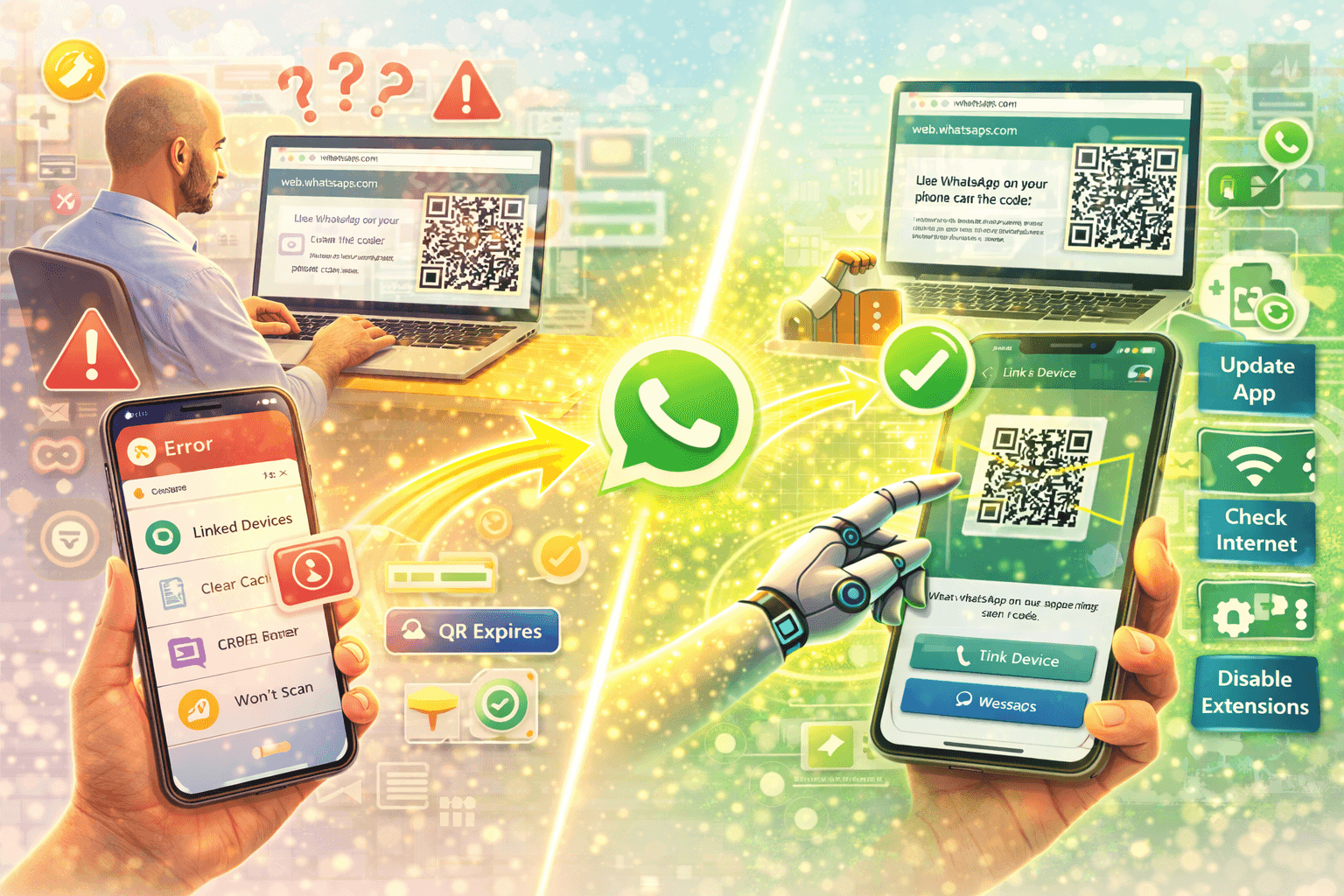
QR Code Keeps Expiring
This is probably the most frustrating thing about WhatsApp Web login. The QR code refreshes every 20 to 30 seconds. If you take too long to scan it, it expires and you have to try again.
Fix: Have WhatsApp open on your phone before you go to web.whatsapp.com. Navigate to Linked Devices first, then open web.whatsapp.com on your computer. Scan immediately. The whole process should take under 10 seconds once you are ready.
Camera Not Scanning the QR Code
Sometimes you point your phone at the screen and nothing happens. The camera just stares at the QR code without recognizing it.
Fix: Clean your phone camera lens. Increase the brightness of your computer screen. Move to a spot with less glare. Hold your phone about 15 to 20 cm from the screen. Make sure the entire QR code is visible in your phone's camera frame, not cropped at the edges.
WhatsApp Web Not Loading on Browser
You go to web.whatsapp.com but the QR code never appears, just a loading screen or an error.
Fix: Try a different browser. Clear your browser cache and cookies. Disable any browser extensions that might be blocking the page, VPN extensions sometimes cause this. Make sure your internet connection is working properly on both your phone and computer.
"This Phone Cannot Be Linked" Error
This error shows up when your WhatsApp version is outdated.
Fix: Go to the App Store or Google Play Store and update WhatsApp to the latest version. Then try again.
Logged Out Automatically
WhatsApp Web logs you out if your phone loses internet connection, if you restart your phone, or if you manually log out from your phone.
Fix: Just scan the QR code again. If you want to stay logged in longer, make sure your phone stays connected to the internet. You can also check "Stay logged in" if that option is available in your browser.
How Many Devices Can You Link to WhatsApp?
WhatsApp allows you to link up to four devices to one account at the same time. This means you can have WhatsApp Web open on your office laptop, your personal laptop, a tablet, and still use it normally on your phone.
All linked devices work independently. Your phone does not need to stay connected to the internet for linked devices to work, a significant improvement WhatsApp made a few years ago. Each linked device syncs your messages directly.
To see all your linked devices, go to Linked Devices in your WhatsApp settings. You can see each device listed with its last active time. You can remove any device from here by tapping on it and selecting "Log Out."
Keeping Your WhatsApp Web Session Secure
Since your WhatsApp account contains all your conversations, it is worth being careful about where you scan the QR code.
Never scan on a shared or public computer. If you use WhatsApp Web in a library, a hotel business center, or a colleague's computer, always log out manually before you leave. Go to Linked Devices on your phone and remove the session.
Check your linked devices regularly. If you see a device listed that you do not recognize or have not used in a while, remove it immediately. It is a sign that someone else might have access to your account.
Do not scan QR codes from unknown sources. Scammers sometimes trick people into scanning fake WhatsApp QR codes that are actually phishing attempts. Always make sure you are on the official web.whatsapp.com before scanning anything. The URL should start with https and show the padlock icon.
Enable two-step verification. Go to WhatsApp Settings, Account, then Two-Step Verification. Adding a PIN adds an extra layer of security to your account even if someone else gets access to your phone temporarily.
WhatsApp Web for Business: What Becomes Possible
For personal use, WhatsApp Web is just a convenience. But for businesses, it is the foundation of efficient WhatsApp management.
When you and your team are managing WhatsApp conversations from laptops, typing speed goes up, response time goes down, and managing multiple conversations becomes much easier. For businesses handling high volumes of WhatsApp inquiries, this matters a lot.
But WhatsApp Web is just the starting point. The real power for businesses comes from the WhatsApp Business API, which is what enables conversation automation, chatbot flows, and CRM integration.
The WhatsApp Business app and WhatsApp Web are great for small-scale manual communication. When your business grows and you need to handle hundreds or thousands of conversations, automated responses, and broadcast campaigns, the API is where you need to be.
WhatsApp automation for small businesses explains exactly how this transition works and what you can achieve once automation is in place. The difference between manually responding to every WhatsApp message and having a smart automation system handle the initial response and qualification is massive in terms of time saved and leads converted.
WhatsApp Web vs WhatsApp Business Web: What Is the Difference?
Regular WhatsApp Web at web.whatsapp.com works for personal WhatsApp accounts and the basic WhatsApp Business app.
If you are using WhatsApp Business app, you access it the same way. Go to web.whatsapp.com, scan the QR code from your WhatsApp Business app using the same Linked Devices process, and your business account syncs to the browser.
The WhatsApp Business API is different. It does not use the QR code login method. API access is managed through a business solution provider like Wasupp and operates through a dashboard rather than through web.whatsapp.com.
If your business is ready to move beyond the basic WhatsApp Business app and into proper automation, here is a complete guide to WhatsApp automation for businesses that explains the difference and helps you understand the right setup for your needs.
Using WhatsApp QR Code to Let Customers Start Conversations
Beyond logging into WhatsApp Web, QR codes serve another powerful business purpose. You can generate a WhatsApp QR code that lets any customer scan and start a conversation with your business directly.
This is different from the web login QR code. Your business WhatsApp QR code is a permanent code that you can print on business cards, display on your shop signage, add to product packaging, or share in your marketing materials. Anyone who scans it goes straight into a WhatsApp conversation with you.
For retail shops, restaurants, clinics, and any business with physical touchpoints, this is a frictionless way to capture customer contacts and start conversations. No typing your number, no saving a contact, just scan and chat.
If you want to go further and make sure those conversations are handled professionally even when your team is busy, WhatsApp broadcast campaigns and automation flows ensure every scan leads to an immediate, helpful response.
Pairing a physical QR code with an automated welcome message means every customer who scans gets an instant reply at any hour, even if your team is not available. That kind of responsiveness builds trust and keeps leads warm from the very first interaction.
Freelancers especially benefit from this approach. Automating client communication on WhatsApp starting from a QR code on your portfolio site or email signature means every inquiry gets an instant professional response, even when you are deep in a project and cannot check your phone.
FAQs: WhatsApp Web QR Code
Why does the WhatsApp Web QR code keep refreshing?
WhatsApp refreshes the QR code every 20 to 30 seconds as a security measure. This prevents someone from taking a screenshot of the code and using it later. Have your phone ready before you open web.whatsapp.com and scan immediately.
Can I use WhatsApp Web without my phone?
For the initial login, you need your phone to scan the QR code. After that, linked devices can work independently of your phone's internet connection for messaging. But to link a new device, you always need phone access.
Can someone else scan my WhatsApp Web QR code and access my account?
Yes, which is why you should never let anyone scan your WhatsApp Web QR code and never scan a QR code from an untrusted source. Always check your Linked Devices and remove any sessions you do not recognize.
How do I log out of WhatsApp Web?
You can log out from the browser by clicking the three dots menu in WhatsApp Web and selecting Log Out. Or go to Linked Devices on your phone, tap the device, and select Log Out.
Can I use WhatsApp Web on my phone browser?
WhatsApp does not fully support WhatsApp Web on mobile browsers. It redirects you to the WhatsApp app instead. WhatsApp Web is designed for desktop and tablet browsers.
Does WhatsApp Web work without internet on my phone?
After the initial QR code scan and linking, your linked device can send and receive messages even if your phone is offline or the phone's internet is off. The device syncs directly with WhatsApp's servers.
Is WhatsApp Web safe to use?
Yes, when used on your own trusted devices. WhatsApp uses end-to-end encryption for all messages, including those sent through WhatsApp Web. The security risk comes from using shared computers and not logging out, not from the platform itself.
What should I do if my WhatsApp Web QR code is not scanning?
Increase your screen brightness, clean your phone camera lens, reduce glare on the screen, hold your phone at the right distance (15 to 20 cm), and make sure the full QR code is visible in the camera frame. If it still does not work, refresh the web.whatsapp.com page to get a new QR code.
The Bottom Line
Scanning the WhatsApp Web QR code is a two-minute process once you know where to look. Open web.whatsapp.com, go to Linked Devices on your phone, tap Link a Device, and scan. That is it.
Once you are on WhatsApp Web, managing your business conversations becomes faster and more efficient. And when you are ready to take that even further, with automated responses, lead qualification flows, and broadcast campaigns, Wasupp can help you build the WhatsApp setup that handles everything from first contact to closed sale.
Want to go beyond basic WhatsApp Web and build a proper business communication system? Connect with the Wasupp team and let us show you what is possible