You're switching from iPhone to Android. Or maybe the other way around. And you're panicking because you don't want to lose years of WhatsApp chats, photos, and videos.
Here's the frustrating truth: WhatsApp makes it incredibly easy to backup on the same platform. iPhone to iPhone? Simple. Android to Android? No problem.
But iPhone to Android or Android to iPhone? That's where things get complicated.
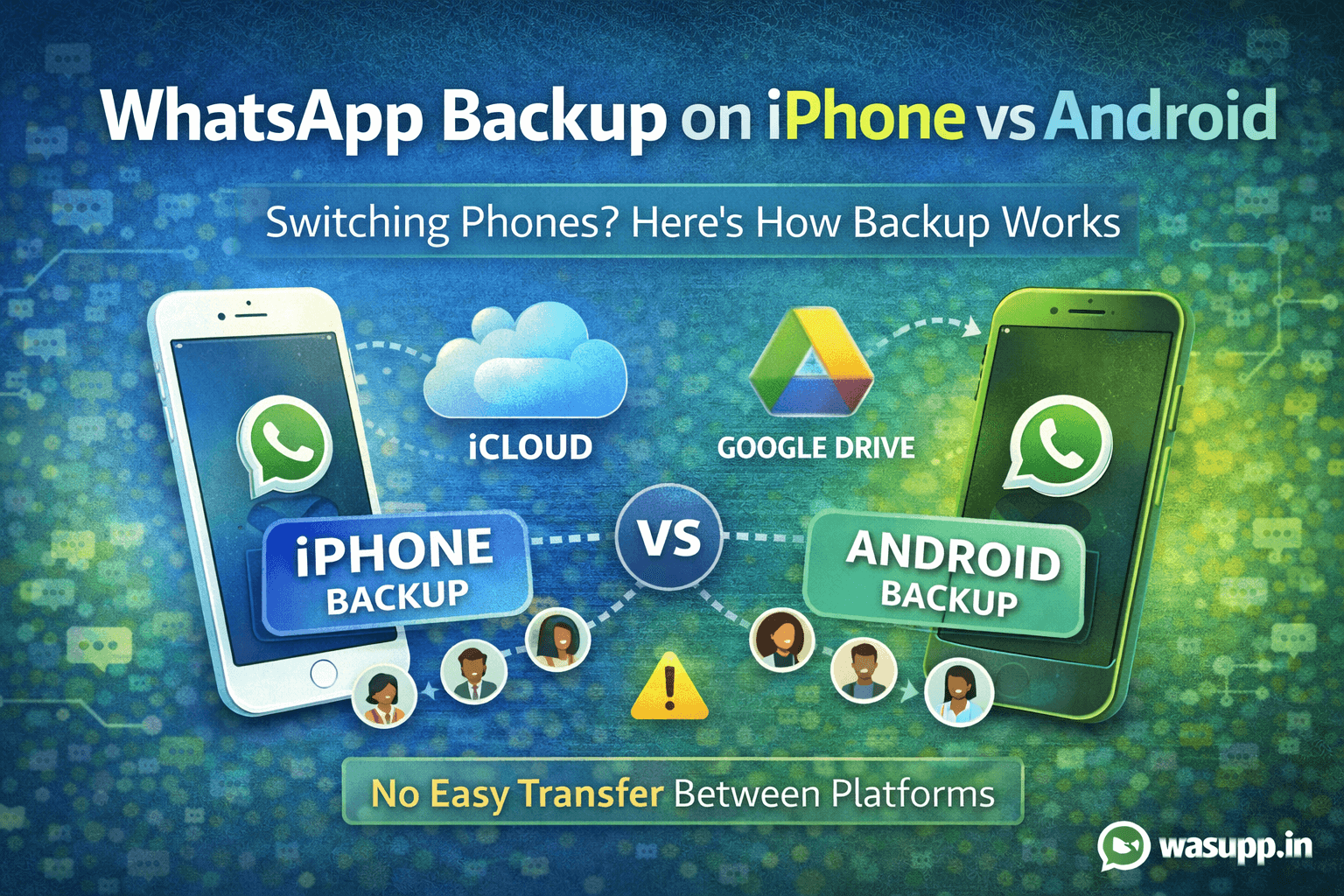
Let me walk you through exactly how WhatsApp backup works on both platforms, why you can't directly backup WhatsApp on iPhone to Google Drive, and what your actual options are when switching between platforms.
How WhatsApp Backup Works on iPhone
On iPhone, WhatsApp uses iCloud for backups. It's Apple's cloud storage system that comes with every Apple ID.
The iPhone Backup Process
When you backup WhatsApp on iPhone, here's what happens:
Step 1: Open WhatsApp and go to Settings Step 2: Tap Chats, then Chat Backup Step 3: Tap Back Up Now
Your entire chat history, photos, videos, and voice messages get uploaded to iCloud. The backup happens over WiFi and can take anywhere from a few minutes to a few hours depending on how much data you have.
What Gets Backed Up on iPhone
- All your text messages
- Photos and videos you've sent and received
- Voice messages
- Documents and files
- Group chats
- Contact information
What doesn't get backed up: your WhatsApp calls history (only chat history gets saved).
iCloud Storage Limits
Every Apple ID gets 5GB of free iCloud storage. Sounds like a lot, but WhatsApp backups can easily exceed that if you've been using the app for years and have lots of media.
If you run out of space, you'll need to either:
- Delete old backups and files from iCloud
- Buy more iCloud storage (50GB for $0.99/month, 200GB for $2.99/month)
- Exclude videos from your backup to save space
Setting Up Automatic Backups on iPhone
You can set WhatsApp to backup automatically:
- Daily
- Weekly
- Monthly
Go to Settings > Chats > Chat Backup and choose your frequency under "Auto Backup."
Most people set it to weekly. That way if something happens to your phone, you won't lose more than a week of chats.
How WhatsApp Backup Works on Android
On Android, WhatsApp uses Google Drive for backups. It's Google's cloud storage that comes with every Gmail account.
The Android Backup Process
Backing up WhatsApp on Android is similar:
Step 1: Open WhatsApp and tap the three dots (menu) Step 2: Go to Settings > Chats > Chat backup Step 3: Tap Back Up to Google Drive
You'll need to:
- Choose which Google account to use
- Select backup frequency (daily, weekly, monthly, or only when you tap "Back Up")
- Choose whether to backup over WiFi only or WiFi and cellular
What Gets Backed Up on Android
Same as iPhone:
- All chat messages
- Photos, videos, and documents
- Voice messages
- Group conversations
- Contact info
Google Drive Storage Limits
Every Google account gets 15GB of free storage. That's more than iPhone's 5GB, but this storage is shared across Gmail, Google Photos, and Google Drive.
So if you have a lot of emails with attachments or photos in Google Photos, your 15GB fills up fast.
If you need more space, Google One pricing is:
- 100GB for $1.99/month
- 200GB for $2.99/month
Good news: WhatsApp backups don't count against your Google Drive storage limit as of 2024. But this could change, so check Google's current policy.
Setting Up Automatic Backups on Android
Just like iPhone, you can set automatic backups:
- Daily (recommended if you use WhatsApp heavily for business)
- Weekly (good for most people)
- Monthly (if you rarely use WhatsApp)
The Big Problem: iPhone to Google Drive Doesn't Work
Here's where people get stuck. They search for "how to backup WhatsApp on iPhone to Google Drive" or "backup WhatsApp iPhone to Google Drive."
The short answer: you can't. Not directly.
Why You Can't Backup WhatsApp iPhone to Google Drive
WhatsApp uses different backup systems for different platforms:
- iPhone backups go to iCloud (Apple's system)
- Android backups go to Google Drive (Google's system)
These systems don't talk to each other. Apple and Google built them to work within their own ecosystems.
So when you try to restore a WhatsApp backup from iCloud on an Android phone, it won't work. The formats aren't compatible.
What Happens If You Try
If you switch from iPhone to Android and try to restore your WhatsApp:
- Android WhatsApp will look for a backup in Google Drive
- It won't find one (because your backup is in iCloud)
- You'll start with a fresh WhatsApp with zero chat history
All your old conversations, photos, and memories? Gone. Unless you use a workaround.
How to Actually Transfer WhatsApp from iPhone to Android
While you can't backup WhatsApp on iPhone to Google Drive directly, you can transfer your chats when switching phones. Here's how:
Official Method: WhatsApp's Move to Android Feature
WhatsApp released an official transfer feature. Here's what you need:
Requirements:
- A cable to connect your iPhone to your Android phone (USB-C to Lightning or similar)
- The "Move to Android" app on your iPhone (download from App Store)
- Both phones need to be nearby and connected
Steps:
- Install WhatsApp on your new Android phone but don't open it yet
- On your iPhone, download and open the "Move to Android" app
- Follow the prompts and connect your iPhone to your Android via cable
- Select WhatsApp when asked what to transfer
- On your Android, follow the setup and select "Import" when WhatsApp asks
- Wait for the transfer to complete (can take 30+ minutes for large chat histories)
This transfers everything: chats, photos, videos, the whole thing.
Limitations:
- You need both phones physically with you
- Requires specific cables
- Can be slow for large data transfers
- Doesn't always work smoothly (some users report errors)
Alternative: Third-Party Transfer Tools
There are paid tools that can transfer WhatsApp between iPhone and Android:
- Dr.Fone - WhatsApp Transfer
- iTransor for WhatsApp
- Tenorshare iCareFone Transfer
These tools typically cost $30-50 and work by:
- Creating a local backup of your iPhone WhatsApp on your computer
- Converting that backup into a format Android can read
- Transferring it to your Android phone
I won't recommend specific ones since these tools change frequently and some are more reliable than others. Check recent reviews before buying.
The Email Export Option (For Important Chats)
If you just want to save specific important conversations, you can email them to yourself:
- Open the chat you want to save
- Tap the contact name at top
- Scroll down and tap "Export Chat"
- Choose "Attach Media" or "Without Media"
- Email it to yourself
This gives you a text file with the entire conversation. Not ideal for restoring, but good for archiving important chats.
How to Transfer WhatsApp from Android to iPhone
Going the other way? Android to iPhone? Same problem, different direction.
Official Method: Move to iOS
WhatsApp now supports transferring from Android to iPhone:
Requirements:
- "Move to iOS" app on your Android phone
- Both phones need to be on the same WiFi
- Fresh iPhone setup (this works during initial iPhone setup)
Steps:
- Start setting up your new iPhone
- When you see "Apps & Data" screen, choose "Move Data from Android"
- On your Android, download "Move to iOS" app
- Follow the prompts on both devices
- Select WhatsApp when asked what to transfer
- Complete the transfer
Again, this only works during initial iPhone setup. If your iPhone is already set up, you'll need to erase it and start fresh to use this method.
Third-Party Tools Work Both Ways
The same paid tools that transfer iPhone to Android also work for Android to iPhone. Same process, just reversed.
Comparison Table: iPhone vs Android WhatsApp Backup
|
Feature |
iPhone (iCloud) |
Android (Google Drive) |
|
Free Storage |
5GB |
15GB (shared with Gmail) |
|
Backup Location |
iCloud |
Google Drive |
|
Automatic Backup |
Yes |
Yes |
|
Include Videos |
Optional |
Optional |
|
Backup Over Cellular |
Yes |
Optional |
|
Cross-Platform Restore |
No |
No |
|
Encryption |
Yes |
Yes |
|
Counts Against Storage |
Yes |
No (as of 2024) |
Best Practices for WhatsApp Backups
Regardless of which platform you're on, follow these tips:
Backup Regularly
Set automatic backups to at least weekly. If you use WhatsApp for business or important conversations, do it daily.
You never know when your phone might break, get stolen, or need to be reset.
Include Videos Carefully
Videos take up massive amounts of storage. If you're low on cloud storage, exclude videos from your backup.
You can always manually save important videos to your phone's photo gallery, which gets backed up separately.
Check Your Backup Actually Worked
After setting up automatic backup, check a week later that it actually happened. Go to the backup settings and verify the date of your last backup.
Sometimes backups fail due to poor WiFi or storage issues, and you won't know unless you check.
Before Switching Phones
If you're buying a new phone (same platform), your WhatsApp backup will restore automatically during setup. Just make sure you:
- Did a fresh backup right before switching
- Use the same phone number on your new phone
- Log in with the same Apple ID (iPhone) or Google account (Android)
Keep Some Storage Space Free
If your cloud storage is 100% full, WhatsApp can't backup. Keep at least 10-20% of your storage free.
The Bottom Line
WhatsApp backup works smoothly within the same ecosystem. iPhone to iPhone is easy. Android to Android is easy.
But crossing between iPhone and Android? That's where WhatsApp's backup system breaks down. You can't backup WhatsApp on iPhone to Google Drive or vice versa.
If you're switching platforms, use WhatsApp's official transfer feature or invest in a third-party tool. Plan ahead, don't wait until after you've already switched and realized your chats are gone.
And if you're staying on the same platform, set up automatic backups right now. Future you will thank you when you need to restore those conversations.
FAQs
Can I backup WhatsApp on iPhone to Google Drive?
No, you cannot backup WhatsApp from iPhone to Google Drive. iPhone WhatsApp only backs up to iCloud. Android WhatsApp backs up to Google Drive. The two systems are not compatible with each other.
How do I transfer WhatsApp from iPhone to Android?
Use WhatsApp's official "Move to Android" feature which requires both phones connected via cable, or use third-party transfer tools like Dr.Fone or iTransor for WhatsApp. You cannot simply restore an iCloud backup on an Android phone.
Will I lose my WhatsApp chats if I switch from iPhone to Android?
Not if you properly transfer them using WhatsApp's official transfer tool or a third-party solution. But if you just set up WhatsApp on your new Android without transferring, yes, you'll lose all your chat history.
How much iCloud storage do I need for WhatsApp backup?
It depends on your chat history size. Most people need at least 2-5GB. If you have lots of videos and photos, you might need 10GB or more. Check your current backup size in WhatsApp settings under Chat Backup.
Can I backup WhatsApp to both iCloud and Google Drive?
No. On iPhone, WhatsApp only backs up to iCloud. On Android, it only backs up to Google Drive. You can't use both or choose a different cloud service.
How long does WhatsApp backup take?
First-time backups can take 30 minutes to several hours depending on how much chat history and media you have. After that, incremental backups are usually faster, taking just a few minutes if you backup regularly.
Do I need WiFi to backup WhatsApp?
On iPhone, you can backup over cellular, but it's not recommended due to data usage. On Android, you can choose whether to backup over WiFi only or allow cellular data. Most people choose WiFi only to avoid eating through their data plan.
What happens if I run out of cloud storage?
Your WhatsApp backups will fail. You'll need to either free up space by deleting old files, buy more storage, or exclude videos from your WhatsApp backup to reduce the backup size.