You're working on your laptop and need to send a WhatsApp message. But your phone is across the room, charging.
Instead of getting up, walking over, unlocking your phone, and typing on that tiny keyboard, you can just use WhatsApp Web.
The trick? A QR code that connects your phone to your computer in seconds.
I'm going to show you exactly how to use the WhatsApp Web QR code, troubleshoot common problems, and share some tips that make using WhatsApp on your computer way more productive.
What Is WhatsApp Web QR Code?
WhatsApp Web is the browser version of WhatsApp that mirrors your phone's conversations on your computer. You can send and receive messages, photos, videos, and files from your laptop or desktop.
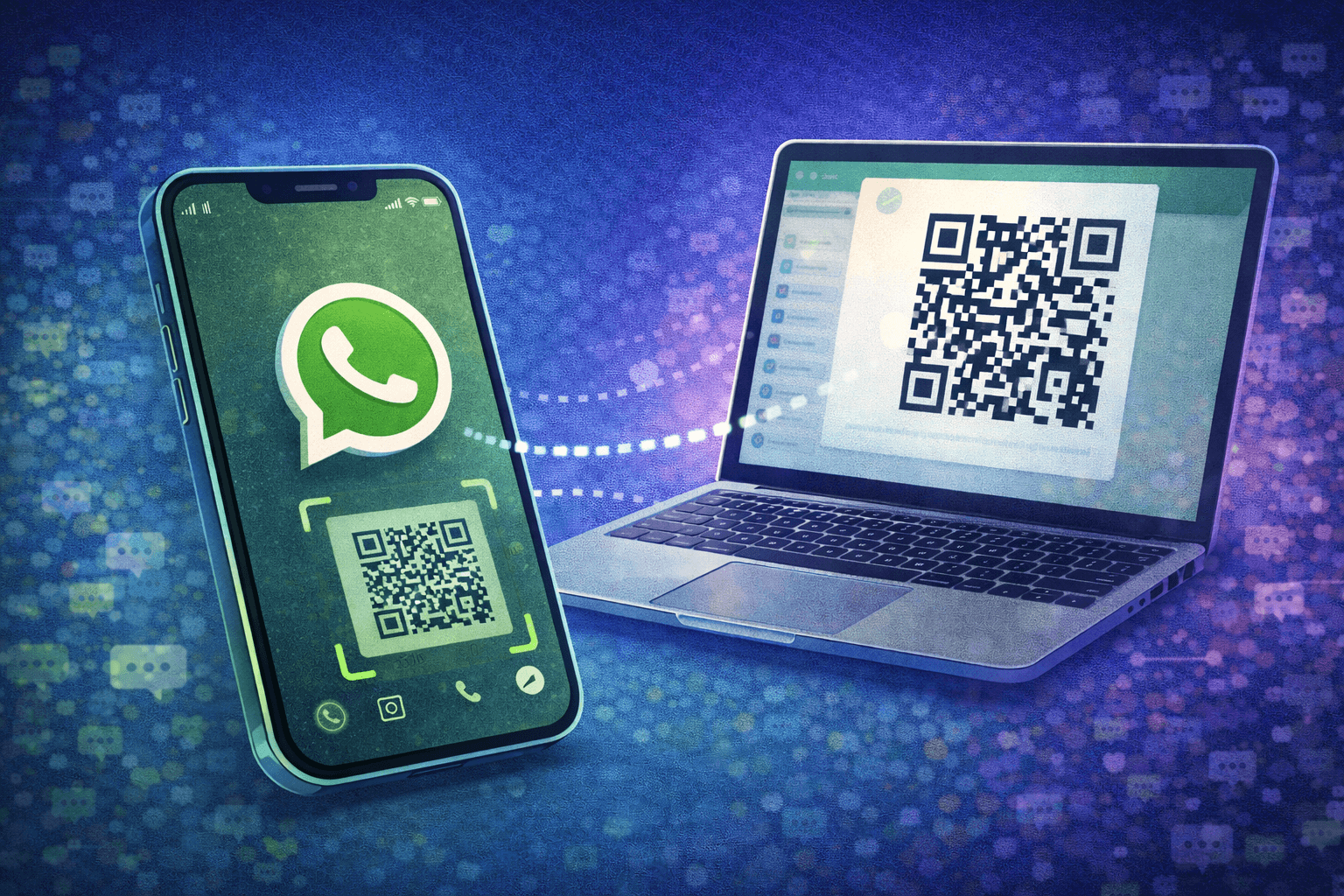
The QR code is how you connect your phone to the web version. It's like a special barcode that your phone scans to authenticate and link the two devices.
Why Use WhatsApp Web?
Faster typing: Computer keyboards are way faster than phone keyboards, especially for long messages.
Multitasking: Keep WhatsApp open in one browser tab while working in others. No constant phone switching.
Bigger screen: Easier to read conversations, view photos, and manage multiple chats.
Copy-paste: Easily move text, links, and files between WhatsApp and your work documents.
Battery saving: Heavy WhatsApp use drains your phone. Using the web version saves phone battery.
For businesses managing customer conversations, WhatsApp Web becomes essential. Imagine handling 50 customer inquiries on a phone keyboard versus a proper computer. No contest.
How to Scan WhatsApp Web QR Code (Step-by-Step)
Let's get you set up. This works on any computer with a web browser.
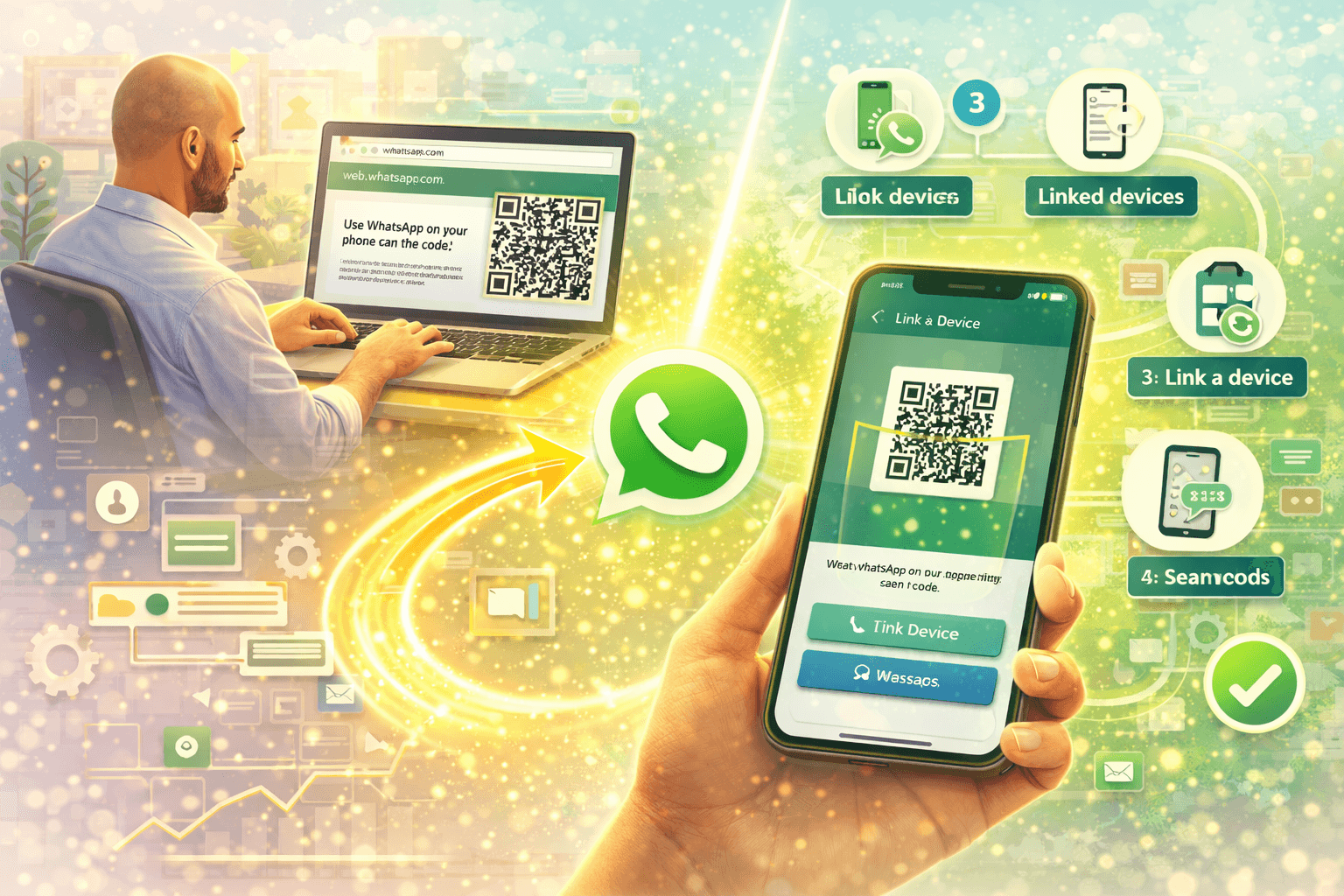
Step 1: Open WhatsApp Web on Your Computer
Go to web.whatsapp.com in your web browser (Chrome, Firefox, Safari, Edge, whatever you use).
You'll immediately see a large QR code in the center of the screen. Don't scan it yet.
Step 2: Open WhatsApp on Your Phone
Unlock your phone and open the WhatsApp app.
Step 3: Access the QR Scanner
On iPhone:
- Open WhatsApp
- Tap "Settings" at the bottom right
- Tap "Linked Devices"
- Tap "Link a Device"
- Your camera opens, ready to scan
On Android:
- Open WhatsApp
- Tap the three dots (menu) at the top right
- Tap "Linked Devices"
- Tap "Link a Device"
- Camera opens for scanning
Step 4: Scan the QR Code
Point your phone's camera at the QR code on your computer screen. Make sure the entire QR code is visible in the frame.
WhatsApp will automatically detect and scan it. You don't need to tap anything.
Within 2-3 seconds, your WhatsApp will load on your computer screen. You'll see all your chats, just like on your phone.
Step 5: Start Using WhatsApp Web
That's it. You're connected. You can now:
- View all your conversations
- Send and receive messages
- Share photos and files
- Make voice and video calls (if your computer has a microphone and camera)
- Create and manage groups
Everything syncs between your phone and computer in real-time.
Understanding "Keep Me Signed In" Option
When you scan the web WhatsApp QR code, you'll see a checkbox that says "Keep me signed in."
What This Means
Checked: You stay logged into WhatsApp Web even after closing your browser. Next time you visit web.whatsapp.com, you'll automatically be logged in without scanning again.
Unchecked: You'll be logged out when you close the browser tab or window. You'll need to scan the QR code again next time.
When to Check It
Check "Keep me signed in" if:
- This is your personal computer
- You're the only person using this computer
- You trust the security of this device
When NOT to Check It
Don't check it if:
- You're using a shared computer (office, library, friend's laptop)
- It's a public computer
- Multiple people have access to this device
Someone with access to that computer could read your WhatsApp messages if you stay signed in.
How to Use WhatsApp Web Without Scanning QR Code
Once you've scanned the QR code and checked "Keep me signed in," you don't need to scan again on that computer.
Just:
- Go to web.whatsapp.com
- WhatsApp automatically loads your chats
This works because WhatsApp stores authentication information in your browser. Your phone stays connected to that browser session.
If You Cleared Browser Data
Clearing cookies and cache removes the authentication. You'll need to scan the QR code again to reconnect.
Managing Linked Devices
Your WhatsApp can be linked to multiple computers and tablets at once. Here's how to manage them:
View All Linked Devices
On your phone:
- Open WhatsApp
- Go to Settings > Linked Devices (iPhone) or Menu > Linked Devices (Android)
You'll see a list of all devices currently connected to your WhatsApp.
Remove a Linked Device
If you see a device you don't recognize or no longer use:
- Tap on that device in the list
- Tap "Log Out"
That device immediately loses access to your WhatsApp. Useful if you forgot to log out from a public computer.
Link Multiple Devices
You can link up to 4 devices simultaneously. This is great if you:
- Use multiple computers (office laptop, home desktop)
- Share account access with team members for business WhatsApp
- Want WhatsApp accessible on different devices
Each device needs to scan the QR code once to link.
Troubleshooting Common WhatsApp Web QR Code Problems
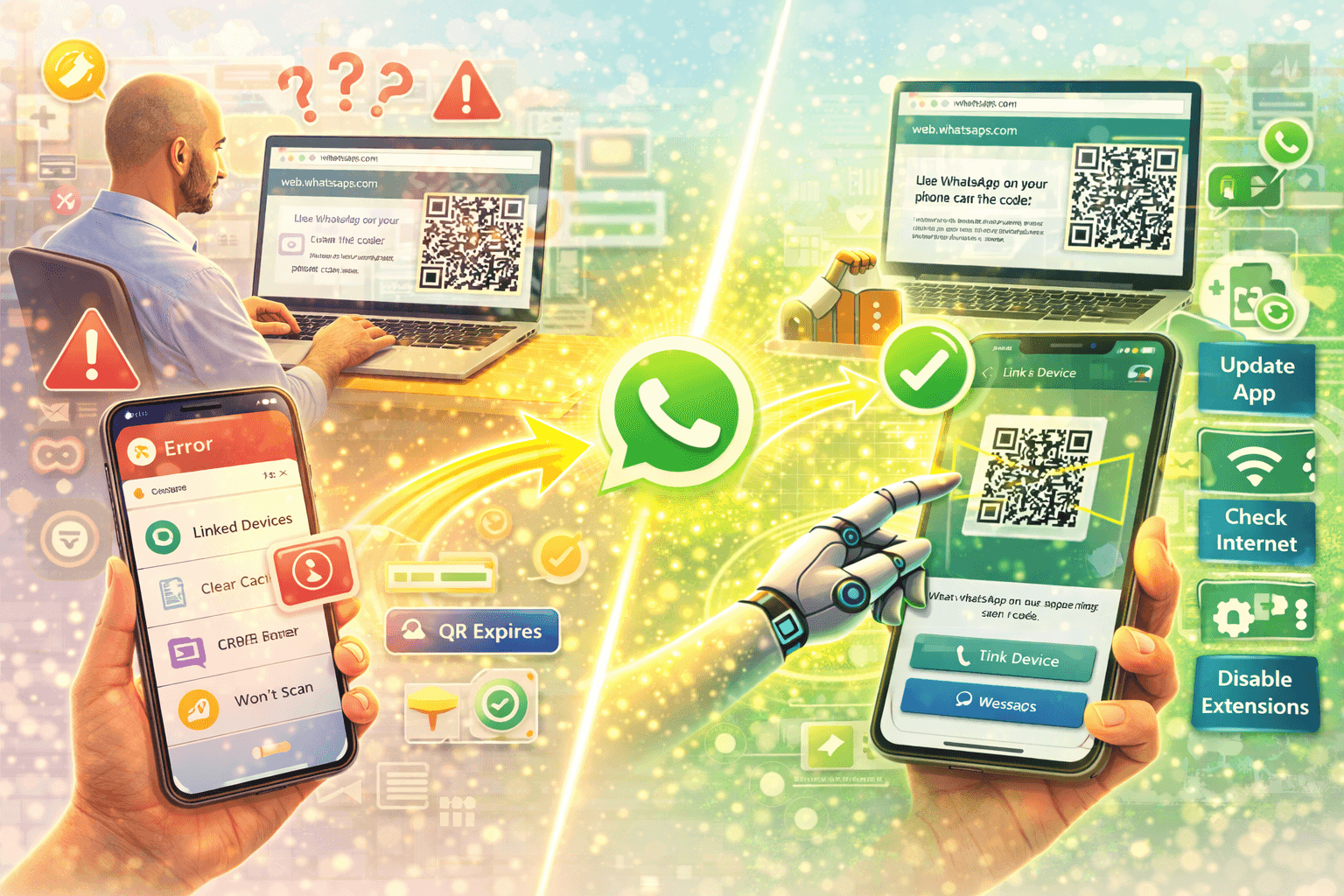
Sometimes the QR code won't scan or WhatsApp Web won't work. Here's how to fix common issues:
Problem 1: QR Code Won't Scan
Possible causes and fixes:
Phone camera won't focus: Clean your camera lens. Move your phone closer or farther from the screen until it focuses.
Screen brightness too low: Increase your computer screen brightness. The phone needs to clearly see the QR code.
Old QR code: The QR code on web.whatsapp.com refreshes every minute or so. If it's been sitting there a while, refresh the browser page to get a new code.
Wrong menu: Make sure you're in "Linked Devices" and tapped "Link a Device," not just opening your camera app.
Problem 2: "Unable to Connect" Error
This usually means:
Phone not connected to internet: WhatsApp Web requires your phone to have an active internet connection (WiFi or cellular data). Check your phone's connection.
Computer not connected: Your computer also needs internet. Check your WiFi or ethernet connection.
Firewall blocking: Some office or school networks block WhatsApp Web. Try connecting from a different network or using mobile hotspot.
Problem 3: Messages Not Syncing
Phone is off or battery died: WhatsApp Web mirrors your phone. If your phone is off, Web won't work.
Phone lost connection: If your phone loses internet connection, messages won't sync until it reconnects.
App running in background: Make sure WhatsApp is actually running on your phone (doesn't have to be open, just not force-closed).
Problem 4: QR Code Not Appearing
Browser compatibility: WhatsApp Web works on Chrome, Firefox, Safari, Edge, and Opera. If using an old or unusual browser, try Chrome.
Outdated browser: Update your browser to the latest version.
Extensions interfering: Ad blockers or privacy extensions sometimes block WhatsApp Web. Try disabling extensions temporarily.
Cache issues: Clear your browser cache and cookies, then reload web.whatsapp.com.
Problem 5: Keeps Disconnecting
Unstable internet: If your phone's internet connection is weak or keeps dropping, WhatsApp Web will disconnect repeatedly.
Phone going to sleep: Some phones aggressively close apps to save battery. Check your phone's battery optimization settings and exempt WhatsApp from aggressive battery saving.
Too many linked devices: If you've linked 4+ devices, try unlinking unused ones.
WhatsApp Web QR Code for Business Use
If you're using WhatsApp for business, Web becomes even more valuable.
Handle Customer Conversations Faster
Typing on a computer is significantly faster than on a phone. When you're managing multiple customer conversations, speed matters.
Using WhatsApp automation along with WhatsApp Web lets you handle high volumes efficiently.
Share Access with Your Team
Multiple team members can access the same business WhatsApp by linking different computers:
- Sales team member links their computer
- Support team member links theirs
- Manager links their laptop
Everyone can handle customer conversations from their workstation instead of passing around a single phone.
Keep Records and Copy Information
Easier to copy order details, customer information, or important messages from Web and paste into your order management system or CRM.
Use Multiple WhatsApp Accounts
If you manage personal and business WhatsApp separately, you can:
- Open personal WhatsApp Web in one browser
- Open business WhatsApp Web in a different browser (or incognito window)
Both can run simultaneously on the same computer.
Security Tips for Using WhatsApp Web
WhatsApp Web is generally secure, but follow these practices:
Always Log Out on Shared Computers
If you use a public computer, library computer, or friend's laptop:
- When done, go to the three dots menu in WhatsApp Web
- Click "Log out"
Or use your phone:
- Go to Linked Devices
- Find that session
- Log it out remotely
Review Linked Devices Regularly
Check your linked devices list monthly. Remove any you don't recognize or no longer use.
Enable Two-Step Verification
Add an extra layer of security:
- Go to WhatsApp Settings on your phone
- Select "Account"
- Choose "Two-step verification"
- Set up a PIN
This PIN will be required when linking new devices.
Be Careful What You Access on Public WiFi
Public WiFi networks aren't always secure. If using WhatsApp Web on public WiFi, avoid:
- Sharing sensitive business information
- Sending financial details
- Accessing confidential customer data
Consider using a VPN for added security on public networks.
WhatsApp Web vs WhatsApp Desktop App
There are two ways to use WhatsApp on your computer:
WhatsApp Web (Browser)
- No installation needed
- Works on any computer with a browser
- Updates automatically
- Uses more browser resources
WhatsApp Desktop App
- Needs to be downloaded and installed
- Native app, potentially faster performance
- Gets notifications even when app is minimized
- Available for Windows and Mac
Both require scanning the same QR code to connect. The setup process is identical.
For casual use, the browser version is fine. For heavy daily use, the desktop app might feel snappier.
The Bottom Line
The WhatsApp Web QR code is your gateway to using WhatsApp on your computer. Scan it once, and you can type faster, multitask better, and manage conversations more efficiently.
Setup takes literally 30 seconds:
- Go to web.whatsapp.com
- Open WhatsApp on phone
- Go to Linked Devices
- Scan the QR code
- Done
Whether you're just tired of typing on a tiny phone keyboard or managing a business with dozens of daily customer conversations, WhatsApp Web makes everything easier.
Just remember to log out on shared computers and review your linked devices regularly for security.
Managing high volumes of WhatsApp conversations for your business? Discover how automation can help you handle more customers without overwhelming your team.
FAQs
Do I need to scan the WhatsApp Web QR code every time?
No. If you checked "Keep me signed in" when first scanning, you'll stay logged in on that computer. You only need to scan again if you log out, clear browser data, or use a different computer.
Can I use WhatsApp Web without my phone?
No. WhatsApp Web mirrors your phone, so your phone must be on and connected to the internet. If your phone is off or has no internet, WhatsApp Web won't work.
How many devices can I link to WhatsApp Web?
You can link up to 4 devices simultaneously (computers and tablets). Your phone doesn't count toward this limit since it's the primary device.
Is WhatsApp Web safe to use?
Yes, when used properly. Messages are end-to-end encrypted just like on your phone. Just make sure to log out on shared computers and review your linked devices regularly.
Why is my WhatsApp Web QR code not working?
Common reasons: poor internet connection on phone or computer, camera can't focus on QR code, browser compatibility issues, or the QR code expired (refresh the page for a new one). Make sure both devices have active internet.&l